# I'm Setting Up @Logseq I...

URL:: https://twitter.com/rroudt/status/1443546446360313859
Author:: @rroudt on Twitter
## Highlights
> I'm setting up @logseq in combination with @obsdmd as a (potential) alternative to Roam.
> Why? Because I want to explore more of the Tools for Thought space—and have a space to journal where there are 100% no prying eyes.
> 🧵 Read on and also learn how to set this up. ([View Tweet](https://twitter.com/rroudt/status/1443546446360313859))
> Why would I use two apps to replace one powerful thinking tool?
> First off, I'm not replacing @RoamResearch as I do most of my knowledge work in it. My current workflows hardly translate to other tools.
> But, I need a private space to journal and love to write in blocks. ([View Tweet](https://twitter.com/rroudt/status/1443546447513718785))
> How to get started combining @logseq and @obsdmd.
> The first step is obviously to install both Logseq and Obsidian.
> Grab Obsidian from their website: https://t.co/3WjoHfOjBJ
> For Logseq you'll want to get the desktop app to make this system work: https://t.co/h01DgtO9yg ([View Tweet](https://twitter.com/rroudt/status/1443546448675573760))
> First install @logseq in a folder that's easy to find and sync.
> In the Logseq folder there will be several other folders created: logseq, journals, and pages. The latter two are important for Obsidian.
> I've created my Logseq graph in my iCloud drive for easy syncing. ([View Tweet](https://twitter.com/rroudt/status/1443546449967341578))
> Next, install @obsdmd.
> Upon starting the app for the first time, click "Open folder as vault" and select the folder you've just created for your Logseq graph.
> The journals, logseq, and pages folders should now be visible in the file explorer on the left.
> 
> 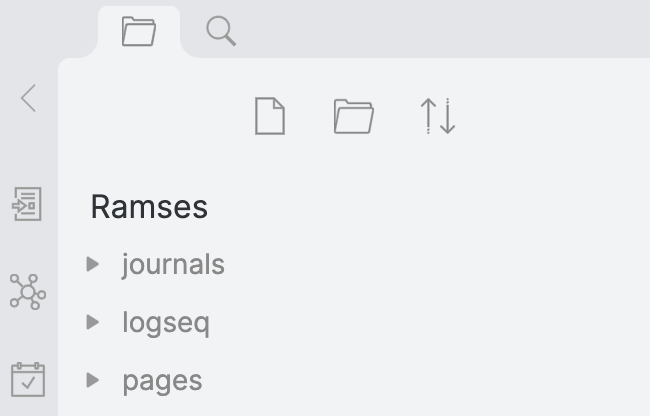 ([View Tweet](https://twitter.com/rroudt/status/1443546457957560327))
> Before you can start using @logseq and access all of your files in @obsdmd (and vice versa), some Obsidian settings need to be adjusted.
> Hat tip to "Luhmann" on the Logseq forums for these instructions.
> https://t.co/XiZITkTWxd ([View Tweet](https://twitter.com/rroudt/status/1443546459450707968))
> From Obsidian's settings:
> 1) Go to the Files & Links tab.
> 2) Set default location for new notes to "In the folder specified below"
> 3) Enter pages
> 4) Set the new link format to "Relative path to file"
> 5) Turn [[Wikilinks]] OFF to use Markdown links instead (better compatibility)
>  ([View Tweet](https://twitter.com/rroudt/status/1443546463800213506))
> To properly manage attachments across @logseq and @obsdmd, make sure you have the following set in the same Files & Links tab:
> 1) Set the default location for new attachments to "In the folder specified below"
> 2) Enter assets
> Obsidian will create the assets folder for you.
> 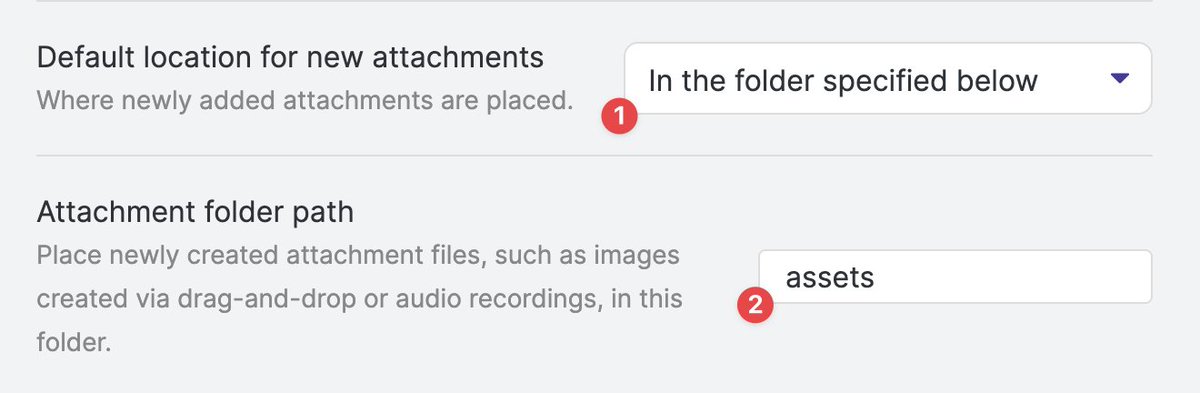 ([View Tweet](https://twitter.com/rroudt/status/1443546467629613064))
> Now, let's make @obsdmd play nicely with @logseq's Daily Notes Page.
> First, from Obsidian's settings, enable the Daily Notes plugin from the Core Plugins tab.
>  ([View Tweet](https://twitter.com/rroudt/status/1443546472075579396))
> Next, you'll want to make sure @logseq and @obsdmd handle the Daily Notes page the same.
> To do this:
> 1) Scroll down to the Daily Notes plugin options.
> 2) Set date format to YYYY_MM_DD
> 3) The the new file location to: journals
>  ([View Tweet](https://twitter.com/rroudt/status/1443546476609564676))
> The reason I use @logseq is because I like to write in a block-based outliner. @obsdmd is different in that it's a page-based tool.
> Search the community plugins tab in Obsidian for "Outliner" and "Zoom" to get a Roam-like outlining experience. It's the 🍒 on top. ([View Tweet](https://twitter.com/rroudt/status/1443546478090145792))
> Finally, close Obsidian and open Logseq to make sure the links to the Daily Notes Page are compatible with Obsidian.
> Go to the Settings.
> From the Editor tab, make sure the preferred date format is set to: yyyy_MM_dd.
> Now any date link you create in Logseq works in Obsidian.
> 
>  ([View Tweet](https://twitter.com/rroudt/status/1443546483895128064))
> Did you like this thread and want me to help you with more Tools for Thought?
> Subscribe to the @RoamStack Twitter account and newsletter. I share a weekly dose of tools and resources to help you improve your life as a knowledge worker.
> https://t.co/EQc2MbtzMJ ([View Tweet](https://twitter.com/rroudt/status/1443546485488959496))
---
Title: I'm Setting Up @Logseq I...
Author: @rroudt on Twitter
Tags: readwise, tweets
date: 2024-01-30
---
# I'm Setting Up @Logseq I...

URL:: https://twitter.com/rroudt/status/1443546446360313859
Author:: @rroudt on Twitter
## AI-Generated Summary
None
## Highlights
> I'm setting up @logseq in combination with @obsdmd as a (potential) alternative to Roam.
> Why? Because I want to explore more of the Tools for Thought space—and have a space to journal where there are 100% no prying eyes.
> 🧵 Read on and also learn how to set this up. ([View Tweet](https://twitter.com/rroudt/status/1443546446360313859))
> Why would I use two apps to replace one powerful thinking tool?
> First off, I'm not replacing @RoamResearch as I do most of my knowledge work in it. My current workflows hardly translate to other tools.
> But, I need a private space to journal and love to write in blocks. ([View Tweet](https://twitter.com/rroudt/status/1443546447513718785))
> How to get started combining @logseq and @obsdmd.
> The first step is obviously to install both Logseq and Obsidian.
> Grab Obsidian from their website: https://t.co/3WjoHfOjBJ
> For Logseq you'll want to get the desktop app to make this system work: https://t.co/h01DgtO9yg ([View Tweet](https://twitter.com/rroudt/status/1443546448675573760))
> First install @logseq in a folder that's easy to find and sync.
> In the Logseq folder there will be several other folders created: logseq, journals, and pages. The latter two are important for Obsidian.
> I've created my Logseq graph in my iCloud drive for easy syncing. ([View Tweet](https://twitter.com/rroudt/status/1443546449967341578))
> Next, install @obsdmd.
> Upon starting the app for the first time, click "Open folder as vault" and select the folder you've just created for your Logseq graph.
> The journals, logseq, and pages folders should now be visible in the file explorer on the left.
> 
>  ([View Tweet](https://twitter.com/rroudt/status/1443546457957560327))
> Before you can start using @logseq and access all of your files in @obsdmd (and vice versa), some Obsidian settings need to be adjusted.
> Hat tip to "Luhmann" on the Logseq forums for these instructions.
> https://t.co/XiZITkTWxd ([View Tweet](https://twitter.com/rroudt/status/1443546459450707968))
> From Obsidian's settings:
> 1) Go to the Files & Links tab.
> 2) Set default location for new notes to "In the folder specified below"
> 3) Enter pages
> 4) Set the new link format to "Relative path to file"
> 5) Turn [[Wikilinks]] OFF to use Markdown links instead (better compatibility)
>  ([View Tweet](https://twitter.com/rroudt/status/1443546463800213506))
> To properly manage attachments across @logseq and @obsdmd, make sure you have the following set in the same Files & Links tab:
> 1) Set the default location for new attachments to "In the folder specified below"
> 2) Enter assets
> Obsidian will create the assets folder for you.
>  ([View Tweet](https://twitter.com/rroudt/status/1443546467629613064))
> Now, let's make @obsdmd play nicely with @logseq's Daily Notes Page.
> First, from Obsidian's settings, enable the Daily Notes plugin from the Core Plugins tab.
>  ([View Tweet](https://twitter.com/rroudt/status/1443546472075579396))
> Next, you'll want to make sure @logseq and @obsdmd handle the Daily Notes page the same.
> To do this:
> 1) Scroll down to the Daily Notes plugin options.
> 2) Set date format to YYYY_MM_DD
> 3) The the new file location to: journals
>  ([View Tweet](https://twitter.com/rroudt/status/1443546476609564676))
> The reason I use @logseq is because I like to write in a block-based outliner. @obsdmd is different in that it's a page-based tool.
> Search the community plugins tab in Obsidian for "Outliner" and "Zoom" to get a Roam-like outlining experience. It's the 🍒 on top. ([View Tweet](https://twitter.com/rroudt/status/1443546478090145792))
> Finally, close Obsidian and open Logseq to make sure the links to the Daily Notes Page are compatible with Obsidian.
> Go to the Settings.
> From the Editor tab, make sure the preferred date format is set to: yyyy_MM_dd.
> Now any date link you create in Logseq works in Obsidian.
> 
>  ([View Tweet](https://twitter.com/rroudt/status/1443546483895128064))
> Did you like this thread and want me to help you with more Tools for Thought?
> Subscribe to the @RoamStack Twitter account and newsletter. I share a weekly dose of tools and resources to help you improve your life as a knowledge worker.
> https://t.co/EQc2MbtzMJ ([View Tweet](https://twitter.com/rroudt/status/1443546485488959496))